Are you tired of your YouTube TV lagging or buffering when you're just trying to enjoy your favorite shows? You’re not alone! Many users face these frustrating issues. In this post, we’ll dive into the common causes of lagging and buffering, helping you understand what's happening and how to fix it.
Understanding the Causes of YouTube TV Lagging
YouTube TV lagging can be a real mood killer. But before you throw your remote at the screen, let’s break down some of the common causes:
- Internet Speed: One of the most significant culprits is a slow internet connection. YouTube TV recommends a minimum of 3 Mbps for standard definition and 25 Mbps for 4K streaming. If your speed dips below these thresholds, you may experience lag.
- Network Congestion: If multiple devices are connected to the same network, they can hog the bandwidth. Think of it like a busy highway during rush hour; the more cars there are, the slower everyone moves.
- Wi-Fi Signal Strength: If you’re streaming far from your router, weak Wi-Fi signals can lead to buffering. Walls, furniture, and even microwave ovens can interfere with your Wi-Fi signal.
- Device Performance: Sometimes, the problem isn’t with your internet but with your device. Older devices may struggle to keep up with the demands of streaming high-quality content.
- Software Updates: Outdated apps or device software can also lead to performance issues. Always keep your device and apps updated to ensure optimal performance.
By understanding these factors, you can better troubleshoot the lagging issues and enjoy seamless streaming. Start by testing your internet speed and checking how many devices are connected. You might be surprised at the simple fixes that can enhance your viewing experience!
Also Read This: What Channel Is YouTube on DirecTV
Common Buffering Issues on YouTube TV
Buffering can be incredibly annoying, especially when you're in the middle of an exciting moment in your show. Let’s explore some common buffering issues and their solutions:
- Insufficient Internet Bandwidth: As mentioned earlier, if your connection speed isn’t up to par, buffering will occur. Use speed test tools to monitor your connection and consider upgrading your plan if needed.
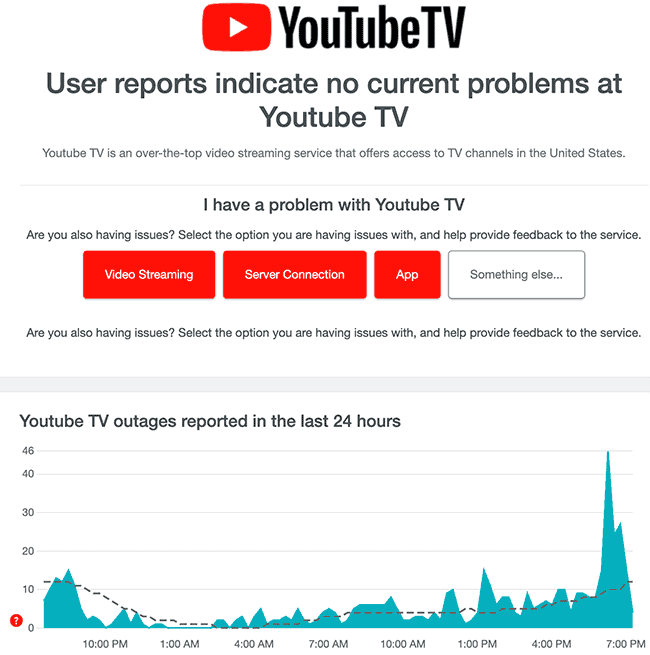
- Server Issues: Sometimes, the problem can originate from YouTube TV’s servers. If there’s a widespread outage or maintenance, you might experience buffering. You can check social media or websites like DownDetector to confirm if others are facing similar issues.
- Quality Settings: If you’re streaming in 4K but your internet can’t handle it, buffering will happen. Adjust your settings to stream in lower quality, such as 720p or 1080p, for a smoother experience.
- Clearing Cache: Apps can accumulate cached data that may slow them down. Regularly clear the cache of your YouTube TV app for improved performance. This can usually be done in your device's settings.
- Using Ethernet Instead of Wi-Fi: If possible, connect your streaming device directly to your router using an Ethernet cable. This can provide a more stable and faster connection.
By identifying these common buffering issues and applying the solutions, you can significantly enhance your YouTube TV experience. Remember, a little troubleshooting can go a long way in ensuring you never miss a moment of your favorite content!
Also Read This: How to Block YouTube Ads in November 2023: Updated Methods for Blocking Ads
3. Checking Your Internet Connection for Optimal Streaming
Have you ever settled in for a cozy night of binge-watching, only to be met with incessant buffering? It’s frustrating! The first step to fixing YouTube TV lagging issues is ensuring your internet connection is up to speed. Here’s how you can check and optimize it:
Test Your Internet Speed
Start by running a speed test. You can use websites like Speedtest.net or apps like Ookla. Ideally, for smooth streaming, you should have:
- At least 25 Mbps for HD quality
- 50 Mbps or more for 4K streaming
Check Your Wi-Fi Signal Strength
If you’re using Wi-Fi, ensure your device is close to the router. Walls and distance can weaken the signal. Consider these tips to improve coverage:
- Relocate your router to a central location in your home.
- Use Wi-Fi extenders or mesh systems for larger spaces.
- Avoid interference from microwaves and cordless phones.
Wired Connection
If possible, switch to a wired Ethernet connection. A direct connection can dramatically reduce lag and improve streaming quality. If you’re not sure how to do this, here’s a quick guide:
- Connect an Ethernet cable from your router to your streaming device.
- Make sure your device is set to recognize the wired connection.
- Test your connection again for speed.
Lastly, if your speed test results are lower than expected, consider resetting your modem or router. A simple reboot can resolve many connectivity issues.
Also Read This: How to Use YouTube on Apple TV: A Beginner’s Guide
4. Adjusting YouTube TV Settings for Better Performance
Once your internet connection is optimized, it’s time to take a look at your YouTube TV settings. Tweaking a few settings can lead to a smoother streaming experience!
Quality Settings
YouTube TV automatically adjusts stream quality based on your internet speed. However, you can manually adjust this if you experience buffering. Here’s how:
- Open the YouTube TV app.
- Go to Settings.
- Select “Video Quality.”
- Choose “Low” or “Medium” if you’re experiencing lag.
- Switch back to “High” or “Auto” once the buffering stops.
Disable Background Apps
Background apps on your device can hog bandwidth. Close any unnecessary apps or tabs running in the background. This simple action can free up resources for YouTube TV and enhance your streaming experience.
Clear the App Cache
Over time, the YouTube TV app can accumulate cache that slows it down. Here’s how to clear the cache:
- Go to your device’s settings.
- Select “Apps” and find YouTube TV.
- Tap on “Storage” and select “Clear Cache.”
After clearing the cache, open the app again and see if the performance improves. You might be surprised at how much better it runs!
By following these steps and optimizing both your internet connection and YouTube TV settings, you’ll be well on your way to enjoying uninterrupted streaming. Happy watching!
Also Read This: How to Know if You Are Shadowbanned on YouTube: Signs and Solutions
5. Using Quality Streaming Devices for Improved Experience
When it comes to enjoying your favorite shows on YouTube TV, the quality of your streaming device can make a world of difference. If you're experiencing lagging or buffering, it might be time to evaluate the device you're using. Not all devices are created equal, and some can handle high-definition streaming better than others. Here’s what you should consider:
- Streaming Sticks: Devices like the Roku Streaming Stick+ or Amazon Fire TV Stick 4K are excellent choices. They are designed specifically for streaming and offer optimized performance to reduce buffering.
- Smart TVs: Many modern smart TVs come with YouTube TV pre-installed. Ensure your TV model is known for smooth streaming—brands like Samsung and LG often deliver better performance.
- Gaming Consoles: If you own a PlayStation or Xbox, you can use these consoles to stream YouTube TV. They offer powerful hardware that typically handles streaming demands well.
It’s also crucial to check the specifications of your device. Look for:
- Supported Resolutions: Ensure your device supports at least 1080p streaming. For the best experience, 4K compatibility is ideal.
- Memory and Processor: Devices with better processors and more RAM can handle streaming more efficiently, leading to fewer interruptions.
If you notice your device is outdated, consider upgrading. A newer device not only improves streaming quality but may also offer additional features like voice control and faster load times, enhancing your overall viewing experience.
6. Updating YouTube TV and Device Software
Keeping your YouTube TV app and device software up to date is essential for optimal performance. Updates often include bug fixes, performance enhancements, and new features that can help resolve lagging and buffering issues. Here’s how to ensure everything is current:
- Check for YouTube TV App Updates: Depending on your device, you can usually update the app by going to the app store, searching for YouTube TV, and selecting the update option if available.
- Update Device Software: Go into your device's settings and look for a software update option. On devices like Roku, Fire TV, or gaming consoles, this is often found in the system settings.
For example, on a Roku, you would navigate to Settings > System > System Update to check for any available updates. Similarly, for Fire TV, go to Settings > My Fire TV > About > Check for Updates.
If you're using a smart TV, the process may vary, but typically you’ll find software updates in the settings menu under Support or About.
Lastly, enabling automatic updates for your apps and device software can save you the hassle of manually checking for updates in the future. This way, you'll always have the best performance and the latest features at your fingertips!
 admin
admin







