If you're a fan of online videos, you might have stumbled upon Dailymotion—a platform filled with diverse content from music to documentaries. While watching directly on the website is great, have you considered using VLC Media Player for a smoother experience? VLC is not just a versatile media player; it can also stream videos from various platforms, including Dailymotion. In this post, we'll explore how to make the most of this feature!
Benefits of Using VLC Media Player for Streaming
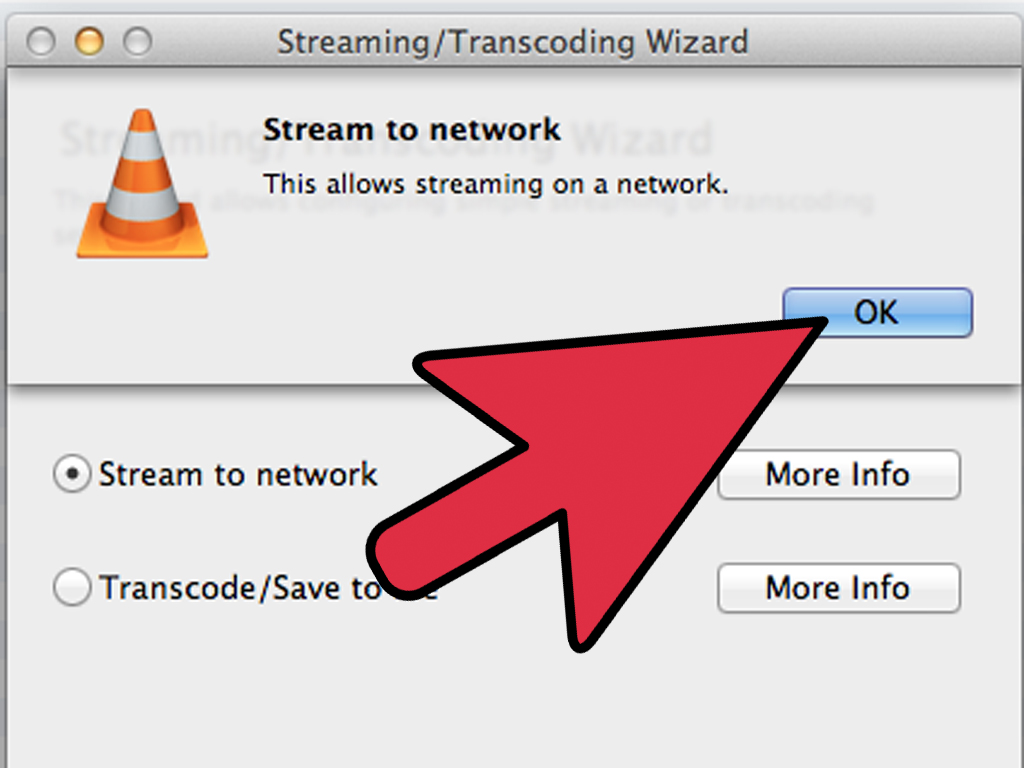
Using VLC Media Player to stream Dailymotion videos comes with several perks. Let's dive into the advantages that make VLC a top choice for video playback:
- Wide Format Support: VLC supports a plethora of video formats, ensuring you can watch virtually any content without compatibility issues.
- Customization Options: With VLC, you can tweak playback settings, including video and audio filters, subtitle preferences, and even playback speed.
- Ad-Free Experience: Unlike many online streaming platforms, VLC provides an uninterrupted viewing experience—no ads to distract you!
- Offline Viewing: You can download videos from Dailymotion and play them later without an internet connection, making it ideal for travel.
- Stream Multiple Sources: VLC can handle streaming from various sources, enabling you to switch between platforms effortlessly.
For those who enjoy a seamless and customizable viewing experience, VLC Media Player stands out as an excellent choice for streaming Dailymotion videos. Whether you’re watching your favorite music videos or catching up on the latest trends, VLC ensures that you have control over how you watch them.
Also Read This: A Guide to Saving Dailymotion Videos Offline on PC and Mobile
3. Step 1: Preparing Your VLC Media Player
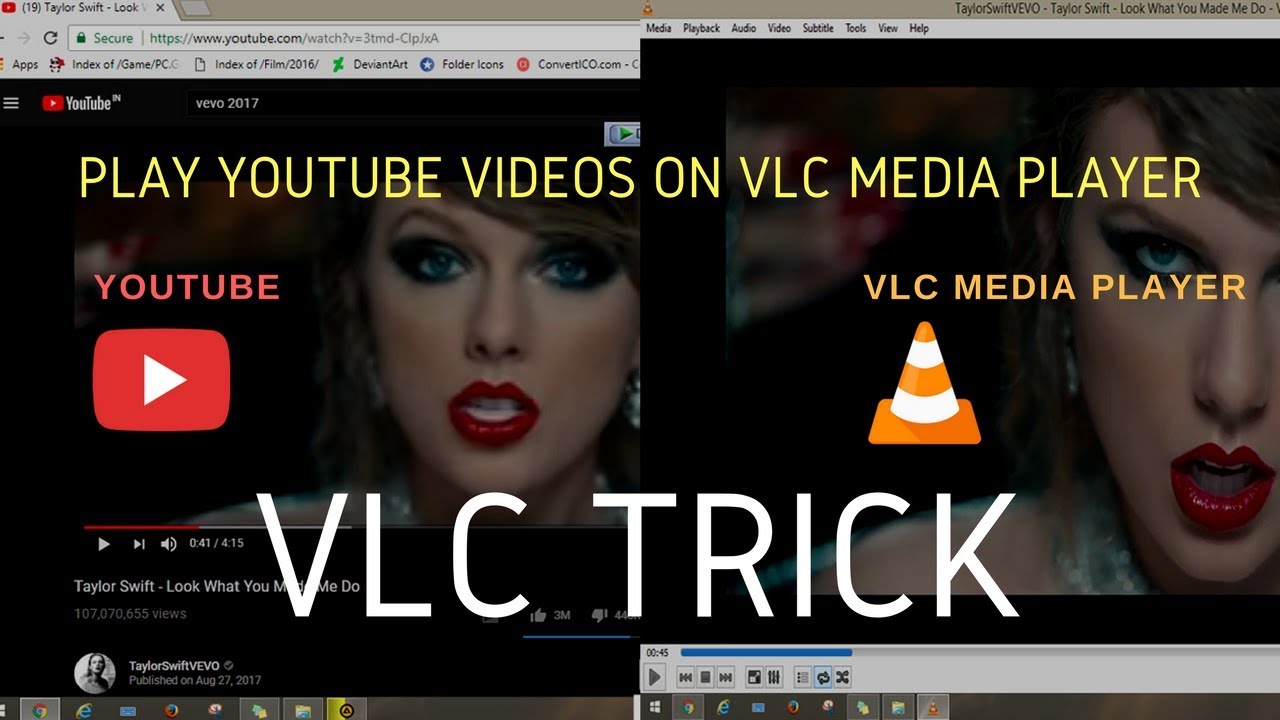
Before diving into the streaming process, let’s ensure your VLC Media Player is ready for action. This powerful tool makes watching Dailymotion videos a breeze, but a few initial setups can enhance your experience.
First things first: make sure you have the latest version of VLC installed. If you haven't updated in a while, you might be missing out on crucial features or fixes. To check this:
- Open VLC Media Player.
- Click on the Help menu at the top.
- Select Check for Updates.
If an update is available, follow the prompts to install it. Once you're up to date, let’s configure a few settings to optimize your stream.
Adjusting Preferences: Open the Preferences window by going to Tools in the menu bar and clicking on Preferences. Here are a couple of settings to tweak:
- Input/Codecs: Under the Input/Codecs tab, ensure that the hardware-accelerated decoding is enabled. This setting can help improve video playback performance.
- Video: In the Video tab, consider adjusting the output settings to match your display for optimal viewing. If your video looks choppy or laggy, try switching the output module.
Once you've made your adjustments, click Save to apply the changes. Your VLC Media Player is now primed, and you're ready for the next step!
Also Read This: How to Deactivate Your Skype Account on Dailymotion with Simple Steps
4. Step 2: Finding the Dailymotion Video URL
Now that your VLC is set up, it's time to find the Dailymotion video URL. This step is crucial, as you’ll need the correct link to stream the video seamlessly. Here’s how to do it:
Step-by-step to grab the URL:
- Open your web browser and navigate to Dailymotion.
- Search for the video you want to watch. You can use the search bar at the top, or browse categories until you find something interesting.
- Once you’ve found your video, click on it to start playing.
- On the video page, right-click the video (or long-press if you’re on a mobile device) and select Copy Video URL. This is the direct link that VLC will use to stream the video.
Alternative Method: If you prefer a more traditional approach, you can also find the video URL in the address bar:
- While the video is playing, look at the address bar in your browser. It should display a URL that looks something like this:
https://www.dailymotion.com/video/xyz123. - Copy this entire link.
With the URL safely copied to your clipboard, you’re ready to head back to VLC. Just a couple more steps, and you’ll be enjoying your Dailymotion video in no time!
Also Read This: Is Slottet on Dailymotion Finding and Watching the Content Online
5. Step 3: Setting Up VLC for Streaming
Alright, you’re doing great so far! Now that you've got the Dailymotion video link handy, it's time to set up VLC Media Player for streaming. This step is crucial because it ensures that VLC knows exactly what to do with the video link you’re about to provide. Let’s get into it!
First off, if you haven’t installed VLC yet, make sure to download it from the official website. It’s available for Windows, MacOS, and Linux, so no matter what system you’re using, you’re covered. Once you have it set up, follow these simple steps:
- Open VLC Media Player: Launch the application. You’ll be greeted with a simple interface that’s pretty user-friendly.
- Access the Network Stream: Click on the Media tab in the top left corner and select Open Network Stream from the dropdown menu. Alternatively, you can simply press Ctrl + N on your keyboard to bring up the same window.
- Enter the Video URL: In the dialog box that appears, you’ll see a field labeled Network URL. This is where you’ll paste the Dailymotion video link you copied earlier. Make sure there are no extra spaces before or after the URL!
- Adjust Preferences (optional): If you're feeling adventurous, you can tweak some settings by clicking on the Show more options checkbox. This lets you configure things like caching and video formats, but for most users, the default settings will work just fine.
Once you’ve pasted in the URL and made any necessary adjustments, you’re just about ready to roll! Just double-check everything one last time—there’s nothing worse than a broken link ruining your streaming session. If everything looks good, you're ready to proceed to the next step!
Also Read This: How to Make a Birthday Cap with Paper DIY Craft on Dailymotion
6. Step 4: Streaming the Video
Now for the moment we've all been waiting for—streaming the video! This part is usually straightforward, and if you’ve followed the previous steps, you’re in for a treat. Here’s how to kick off the streaming:
- Start Streaming: With the video URL in place, simply click the Play button in the VLC window. This will initiate the streaming process. Sit back and watch as VLC begins to fetch and play the video from Dailymotion!
- Adjust Playback Settings: Once the video starts, you can adjust the playback settings. If you need to tweak the volume or video quality, VLC offers some handy controls. Use the slider at the bottom to adjust volume, and if you want to switch to full screen, just double-click the video!
- Troubleshooting: If the video doesn’t play or you encounter any buffering issues, don’t panic! Check your internet connection first. Sometimes, a weak connection can cause interruptions. You can also try pausing the video for a moment to let it buffer.
If all goes well, you should now be enjoying your Dailymotion video directly through VLC! It’s a fantastic way to bypass the browser and have a smoother watching experience. Plus, with VLC’s robust features, you can even take screenshots or record the video if you wish.
So there you have it—streaming Dailymotion videos on VLC Media Player is not only easy but opens up a world of possibilities for your viewing habits. Enjoy your streaming!
Also Read This: How to Switch to Full Screen Mode While Watching Videos on Dailymotion
Troubleshooting Common Issues
Streaming Dailymotion videos on VLC Media Player is usually a smooth experience, but sometimes you might run into a few hiccups. Don't worry—most issues are easy to fix! Here are some common problems you may encounter and how to resolve them:
- Video Not Playing: If the video doesn't start, make sure you've copied the correct URL from Dailymotion. Sometimes, the format of the link might not be compatible. Instead of copying the page URL, try right-clicking on the video and selecting "Copy video URL."
- VLC Crashing: If VLC crashes or freezes while trying to play a video, consider updating your VLC Media Player. Go to Help > Check for Updates in the VLC menu. An outdated version can lead to performance issues.
- No Sound: No one wants to watch a video silently! If you don’t hear anything, check the volume settings both in VLC and your system. Make sure the audio is not muted in VLC (check the speaker icon at the bottom). Also, confirm that your output device is set to the correct speakers or headphones.
- Buffering Issues: If you experience buffering, it may be due to a slow internet connection. Try lowering the video quality temporarily on Dailymotion to see if it plays smoothly. Additionally, closing other applications that use bandwidth might help.
- Playback Errors: If you encounter specific error messages, take note of them. A common one is “VLC cannot open the MRL.” This often indicates a problem with the URL. Double-check it or try a different video.
If you’ve tried all these troubleshooting tips and nothing seems to work, consider checking online forums or the VLC support community. Other users may have faced similar issues and can offer solutions that worked for them.
Conclusion and Final Thoughts
Streaming Dailymotion videos on VLC Media Player can significantly enhance your viewing experience, allowing you to enjoy content with custom settings and flexibility. With a few simple steps, you can easily access your favorite videos directly from your desktop.
To recap, here are the key points we've covered:
- How to obtain the correct video URL from Dailymotion.
- Steps to enter the URL in VLC for streaming.
- Common issues you might face and their solutions.
As a final thought, remember that the world of online video is always evolving. New features, updates, and formats may change how we stream content. Staying updated on both VLC and Dailymotion can help you maximize your viewing pleasure.
Don't hesitate to explore VLC’s other features, like playlist management and video effects, to further enhance your streaming experience. Happy watching!
 admin
admin







