Have you ever stumbled upon a YouTube video that you just had to keep? Whether it's a tutorial, a music video, or a funny clip, saving it can be a lifesaver. In this guide, we’ll show you how to easily save YouTube videos to a flash drive, so you can access them anytime, anywhere. Let’s dive into the reasons why saving these videos can be a great idea!
Why Save YouTube Videos to a Flash Drive?
There are several compelling reasons to save YouTube videos to a flash drive. Here are some of the most significant benefits:
- Offline Access: Saving videos allows you to watch them without an internet connection. Perfect for long trips, flights, or areas with poor connectivity!
- Storage Management: Flash drives offer a convenient way to manage your video library. You can easily transfer videos to your computer or other devices.
- Backing Up Content: YouTube videos can be removed or made private at any time. Having a backup ensures you won’t lose content you love.
- Organizing Your Favorites: Create a collection of your favorite videos for specific occasions, like parties, road trips, or study sessions.
- Shareability: A flash drive makes it easy to share videos with friends or family. Just plug it into their device and share your favorite finds!
Now, let’s explore each of these points in more detail:
Offline Access: Imagine being on a long flight and wanting to watch that tutorial you found last week. By saving the video to your flash drive, you can enjoy it without relying on Wi-Fi. This is particularly useful in rural areas or during travel where internet access is limited.
Storage Management: With a typical computer hard drive, space can fill up quickly. Flash drives provide a portable and easy way to store videos without cluttering your computer. Plus, they come in various sizes, so you can choose one that fits your needs.
Backing Up Content: YouTube is a treasure trove of information, but sometimes creators remove videos or change their settings. By saving the videos you love, you create your own archive that remains accessible, even if the original source disappears.
Organizing Your Favorites: You can categorize videos based on themes or events—like a holiday playlist or your top workout videos. This makes it easier to find what you want when you need it, saving you time and effort.
Shareability: Plugging a flash drive into a friend’s computer to share funny clips or inspiring talks is so easy! This way, you can spread the joy of your favorite content without the hassle of internet speeds or data limits.
In short, saving YouTube videos to a flash drive provides a practical solution for accessing, managing, and sharing content conveniently. So, if you’re ready to start your video-saving adventure, stay tuned for the next steps on how to do it efficiently!
Also Read This: Is Layze From YouTube Married? Uncovering the Personal Life of a Popular Creator
3. Requirements for Saving Videos
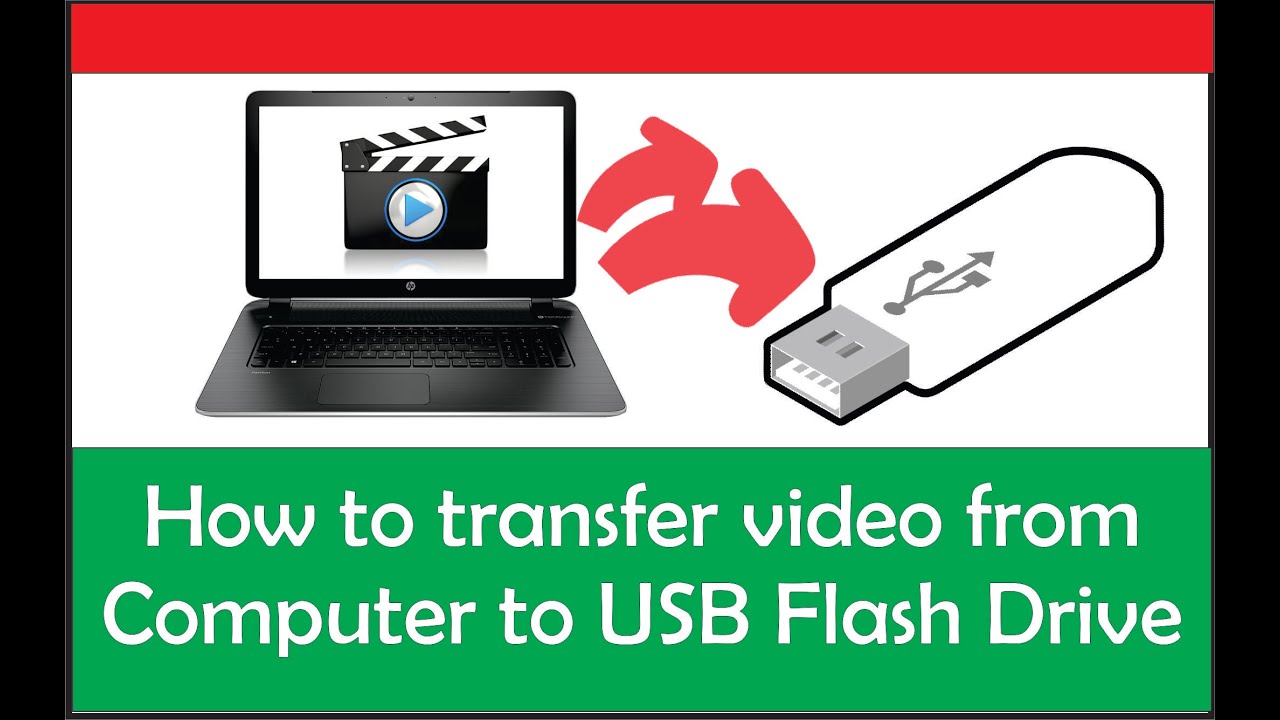
Before diving into the fun part of saving YouTube videos to your flash drive, let’s take a moment to gather what you’ll need. Understanding the requirements ensures a smooth experience without any hiccups. Here’s what you need:
- A Computer: You’ll need a computer to download the videos. This can be a desktop or a laptop running Windows, macOS, or even Linux.
- An Internet Connection: Since you’re downloading videos, a stable internet connection is essential. Make sure you’re connected to avoid interruptions.
- Flash Drive: A USB flash drive with enough space for the videos you plan to download. It's good to check the storage capacity—videos can take up quite a bit of space, especially if you're downloading in high quality.
- Video Downloader Software: You’ll need a reliable YouTube video downloader. Some popular options include:
- 4K Video Downloader: A user-friendly tool that supports various video formats.
- YTD Video Downloader: Great for downloading and converting videos quickly.
- Freemake Video Downloader: Allows downloads in multiple formats and resolutions.
- Basic Knowledge of File Management: A bit of familiarity with file management will help you navigate your computer and flash drive easily.
Once you have everything set up, you’re ready to start downloading! The following section will guide you through the process step by step, so let’s get that flash drive filled with your favorite videos!
Also Read This: Ẩm Thực Đồng Quê (Traditional Village Cuisine) on YouTube: Exploring Authentic Recipes
4. Step-by-Step Guide to Downloading YouTube Videos
Now that you have all the requirements in place, it’s time to jump into the step-by-step guide on downloading those YouTube videos to your flash drive. Let’s make it as easy as possible!
- Choose the Video: Open your web browser and go to YouTube. Find the video you want to download. Copy its URL from the address bar—this is the link that you’ll need.
- Open Your Video Downloader: Launch the video downloader software you’ve chosen. For example, if you’re using 4K Video Downloader, open the application.
- Paste the URL: In the downloader, look for a button that says “Paste Link” or something similar. Click it, and the software will process the link.
- Select the Format and Quality: After processing, you’ll be presented with options. Choose the desired format (like MP4 for videos) and the quality (like 720p or 1080p). Higher quality means larger file sizes, so keep an eye on your flash drive’s space.
- Choose the Download Destination: Click on the settings or preferences to specify that you want to download the video directly to your flash drive. Make sure the flash drive is connected to your computer and recognized.
- Download the Video: Once everything is set, hit the download button. The software will start downloading the video, and you’ll see a progress bar that shows how much time is left.
- Check Your Flash Drive: After the download completes, navigate to your flash drive to ensure the video is there. You can double-click on it to play and verify that everything downloaded correctly.
And there you have it! With these steps, you can easily save any YouTube video directly onto your flash drive. Enjoy your videos anytime, anywhere, without needing an internet connection. Happy watching!
Also Read This: A Step-by-Step Guide on How to Add an Administrator to Your YouTube Channel
5. Transferring Videos to a Flash Drive
Once you’ve downloaded your favorite YouTube videos, the next step is to transfer them to your flash drive. This process is pretty straightforward, but let’s break it down to make sure you don't miss a step!
First, plug your flash drive into the USB port of your computer. You should see a notification that the drive is detected. If you’re using Windows, you’ll find it under “This PC” or “My Computer.” On a Mac, it’ll appear on your desktop or in Finder.
Now, let’s locate those downloaded videos. If you’ve downloaded them using a specific program, they’re usually stored in a default folder, often the “Downloads” folder. Open this folder and find the videos you want to transfer.
Next, it’s time to copy the videos. Here’s how:
- Highlight the videos you wish to transfer. You can do this by clicking on them while holding down the Ctrl key (Windows) or Command key (Mac).
- Right-click on the highlighted videos and select Copy from the context menu.
- Now, navigate to your flash drive. Right-click in the flash drive window and select Paste.
Your videos will start transferring, and depending on their size, this could take a few seconds to a few minutes. Once completed, you’ll see the videos in your flash drive’s directory.
Before you remove your flash drive, make sure to safely eject it. On Windows, right-click the flash drive icon in “This PC” and choose Safely Remove Hardware. On a Mac, click the eject icon next to the drive in Finder. This helps prevent data corruption.
Also Read This: How to Add the Tennis Channel to YouTube TV: Complete Instructions
6. Troubleshooting Common Issues
Even the simplest tasks can sometimes run into hiccups. If you encounter issues while saving or transferring your YouTube videos to a flash drive, don’t worry! Here are some common problems and their solutions:
Problem 1: Video Won’t Download
If a video isn’t downloading, ensure that:
- The URL is correct—double-check for any typos.
- Your internet connection is stable. Try reloading the page or switching to a different network.
Problem 2: Flash Drive Not Recognized
If your flash drive isn’t showing up:
- Try plugging it into a different USB port.
- Check if the flash drive works on another computer.
Problem 3: Files Too Large for Flash Drive
If the video files are larger than your flash drive capacity, consider:
- Using a larger flash drive; 16GB or more should suffice for most videos.
- Compressing the video files using software like HandBrake to reduce their size.
Problem 4: Transfer Fails
If the transfer process fails:
- Ensure that your flash drive is not full.
- Check for any file format compatibility issues and try saving in a different format.
With these tips, you should be well-equipped to troubleshoot any issues that arise during your video-saving journey. Happy video saving!
Also Read This: How to Access MLB Network on YouTube TV
7. Conclusion
Saving YouTube videos to a flash drive can seem a bit daunting at first, but with the right tools and a little know-how, it becomes a straightforward task. Whether you're looking to keep a favorite video for offline viewing or want to share content with friends without relying on an internet connection, knowing how to effectively download and transfer videos is invaluable.
To recap, we explored various methods to save videos. From using online downloaders to software applications, there’s a solution for everyone. Remember to consider factors such as video quality and format compatibility when downloading. Always respect copyright laws and the guidelines provided by YouTube.
In the end, the ability to save videos to a flash drive not only enhances your viewing experience but also allows for greater flexibility in how you consume content. So, go ahead and give it a try! You might just find yourself creating a personalized library of your favorite videos.
8. Additional Resources
If you're eager to dive deeper into saving YouTube videos or simply want to explore more about video formats and storage, here are some additional resources that could be helpful:
- YouTube Help Center: This is a great place to start for understanding YouTube's terms and conditions regarding video downloads.
- Video Downloaders Comparison: Websites like TechRadar or CNET often review and compare various video downloading tools to help you choose the best one for your needs.
- File Format Guide: Understanding different video formats can be beneficial. Websites like Wikipedia have detailed entries on various formats like MP4, AVI, and MKV.
- YouTube to MP3 Converters: If you're interested in just the audio from videos, resources like YTMP3 or 4K YouTube to MP3 can be helpful.
- Online Forums: Platforms like Reddit have communities where users share tips and tricks for downloading and managing video content.
By utilizing these resources, you can enhance your video downloading skills and ensure you’re always up to date with the latest tools and techniques. Happy downloading!
 admin
admin