Switching to a new phone can feel overwhelming, especially when it comes to getting your favorite apps up and running. If you're a Telegram user, you're in luck! Logging into Telegram on a new device is a straightforward process. In this guide, we’ll walk you through each step, ensuring you stay connected with friends and groups seamlessly. So, let’s dive in and get you set up!
Understanding Telegram's Security Features

Before we jump into the login process, it’s essential to understand the security features that make Telegram a popular choice for privacy-conscious users. Telegram isn’t just another messaging app; it incorporates several robust security measures designed to protect your conversations and data.
1. End-to-End Encryption
Telegram offers end-to-end encryption for its "Secret Chats." This means that only you and the recipient can read the messages. Even Telegram itself cannot access these conversations. Regular chats, while encrypted, are not end-to-end encrypted, so they're stored on
2. Two-Step Verification
To enhance your account's security, Telegram allows you to enable two-step verification. This extra layer of security requires not just your password but also a verification code sent to your registered phone number. Here's how to set it up:
- Open Telegram and go to Settings.
- Navigate to Privacy and Security.
- Tap on Two-Step Verification and follow the prompts to create a password.
This way, even if someone has your phone number, they won't have access to your account without the additional password.
3. Self-Destructing Messages
In Secret Chats, you can send self-destructing messages. After a certain time, these messages will automatically delete themselves from both your device and the recipient's device. This feature is perfect for sharing sensitive information without leaving a digital footprint!
4. Anonymous Groups and Channels
Telegram also supports anonymous groups and channels, allowing you to participate in discussions without revealing your phone number. This feature is especially useful for communities where privacy is a priority. You can join or create groups that align with your interests while maintaining your anonymity.
5. Active Sessions Management
Another fantastic feature is the ability to manage active sessions. You can see all the devices currently logged into your account and terminate any sessions you no longer use. To do this:
- Go to Settings.
- Tap on Privacy and Security.
- Scroll to Active Sessions.
- Here, you can log out of any device remotely.
This is crucial if you ever lose your phone or suspect unauthorized access.
Understanding these security features will help you make the most of Telegram while keeping your data safe. Now, you're better equipped to navigate the app confidently as we move on to the login process in the next sections!
Also Read This: How to Recover a Deleted Telegram Account Quickly
3. Preparing Your New Phone for Telegram Login
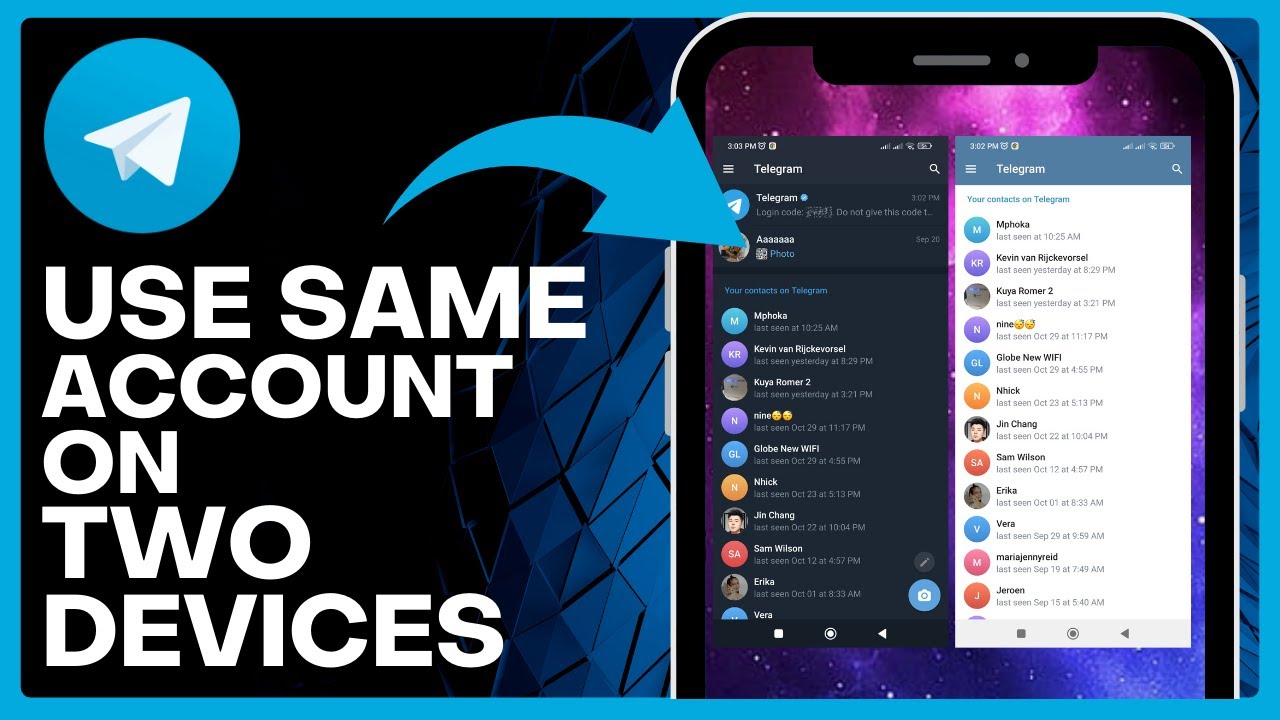
Before diving into the actual login process, it's essential to ensure that your new phone is ready for a seamless Telegram experience. Here’s how to prepare:
- Install the Telegram App: Head over to your device's app store—Google Play for Android or the App Store for iOS. Search for Telegram, and download the official app. It’s usually one of the top results, so you can’t miss it!
- Check Your Internet Connection: Whether you’re using Wi-Fi or mobile data, make sure you have a stable internet connection. A weak signal can lead to login issues or app malfunctions.
- Update Your Device: Before logging in, ensure your phone's operating system is updated to the latest version. This can prevent compatibility issues and provide smoother functionality.
- Enable Permissions: When you launch the app for the first time, it may request permission to access your contacts, media, and notifications. Grant these permissions for the best experience, as Telegram uses them to enhance your messaging.
Once you’ve completed these steps, your new phone will be primed and ready for the Telegram login process. It’s straightforward, and you’ll be connecting with friends in no time!
Also Read This: How to Buy Ton on Telegram
4. Steps to Log in to Telegram on Your New Phone
Now that your phone is ready, let’s get into the nitty-gritty of logging into Telegram. Follow these steps, and you'll be chatting away in no time:
- Open the Telegram App: Locate the Telegram icon on your home screen or app drawer and tap to open it.
- Select Your Country Code: On the login screen, you’ll first choose your country code from the dropdown list. This is important as it helps Telegram send you the verification code.
- Enter Your Phone Number: Type in your phone number, starting with the area code you just selected. Make sure to double-check for any typos!
- Receive Your Verification Code: After entering your phone number, hit the Next button. Telegram will send you a verification code via SMS. This might take a few moments, so be patient.
- Enter the Verification Code: Once you receive the SMS, input the code into the app. If you don’t receive it, there’s usually an option to resend the code.
- Set Up Your Profile: After successfully logging in, you may be prompted to set up or update your profile. You can add a profile picture and a username if you wish. This step adds a personal touch!
- Explore Telegram: Congratulations! You’re now logged into Telegram. Spend some time exploring features like chats, groups, and channels. You can also sync your contacts to find friends who are already using the app.
And there you have it! With these simple steps, you’re all set up on Telegram using your new phone. Enjoy chatting!
Also Read This: Can You Get Hacked Through the Telegram App? Precautions to Take
5. Troubleshooting Common Login Issues
Even the most straightforward processes can sometimes encounter hiccups, and logging into Telegram on a new phone is no exception. Here are some common issues you might face and how to resolve them:
- Verification Code Not Received: If you find yourself waiting for a verification code that never arrives, first check that your phone has a good signal. Sometimes, a poor connection can delay messages. If everything seems fine, try the following:
- Request the code again. Sometimes, a simple refresh will do the trick.
- Ensure your number is entered correctly, including the country code.
- If you have another messaging app, try switching your SIM card into another device to see if the problem persists.
- Invalid Code: If you receive the verification code but it’s not working, double-check that you’re entering it correctly. Remember, codes are case-sensitive! If you’re still having trouble, consider:
- Using the "Request a new code" option after a few minutes.
- Restarting your phone; sometimes a simple reboot can resolve temporary glitches.
- Account Locked: If you’ve attempted to log in multiple times with the wrong code or number, your account might be temporarily locked. Here’s what to do:
- Wait for about 10-15 minutes and try logging in again.
- If you still can’t log in, consider reaching out to Telegram support for assistance.
- Two-Step Verification: If you’ve enabled two-step verification, your regular phone number verification won’t be enough. You’ll need your password. If you've forgotten it:
- Use the “Forgot Password” option to reset it via your email.
- If you can't access your email, you may need to wait for a recovery period or contact Telegram support directly.
Remember, these issues are common, and most can be resolved with a little patience and troubleshooting!
6. Tips for Enhancing Your Telegram Experience
Now that you’re logged in and ready to dive into the world of Telegram, here are some tips to enhance your experience:
- Customize Your Notifications: One of the first things you should do is tailor your notification settings. You can silence certain chats or set custom tones for specific contacts. This way, you won't miss important messages, but you won’t be distracted by less critical ones.
- Create Folders: If you’re part of numerous groups and channels, organizing them into folders can save you time. Go to Settings > Folders, and create categories like “Work,” “Friends,” or “News” for easier navigation.
- Use Secret Chats: For added privacy, utilize Telegram’s secret chat feature. These chats offer end-to-end encryption, and you can set self-destruct timers for messages. Just tap on the contact’s name and select “Start Secret Chat.”
- Explore Bots: Bots can be incredibly useful on Telegram. From weather updates to scheduling, there’s a bot for almost everything. Just type "@" followed by the bot’s name in the search bar to find one you might like.
- Change Themes: Keep things fresh by changing your theme! Go to Settings > Chat Settings, and pick a theme that suits your style. You can even create a custom theme if you’re feeling adventurous.
- Keyboard Shortcuts: If you’re using Telegram on your computer, keyboard shortcuts can save time. For instance, use Ctrl + N to start a new chat or Ctrl + Shift + M to mute messages.
With these tips, your Telegram experience will not only be smoother but also more enjoyable. Dive in, explore, and make the app work for you!
 admin
admin