Creating a standout resume can feel daunting, but LinkedIn has made it easier than ever! With its vast network and robust profile features, you can transform your LinkedIn profile into a professional resume in just a few clicks. Let’s explore how to leverage
Why Use LinkedIn for Resume Creation?
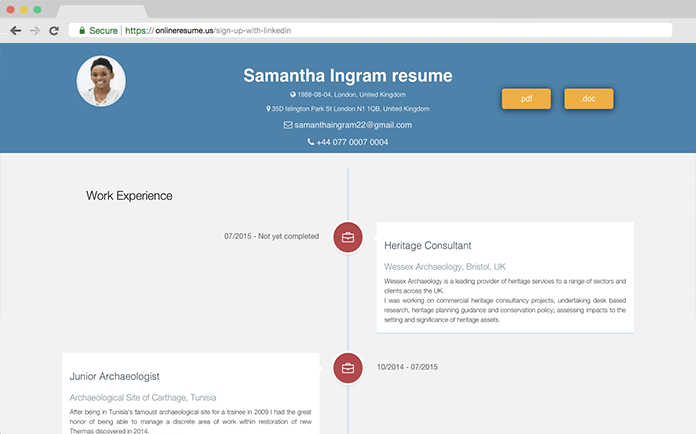
Using LinkedIn for resume creation offers several advantages that can significantly enhance your job search experience. Here’s why it’s a go-to platform:
- Comprehensive Profile: Your LinkedIn profile serves as a dynamic resume, showcasing your experience, skills, and accomplishments in one place. You can easily add detailed descriptions of past roles, projects, and achievements that would be tough to fit on a traditional resume.
- Easy Formatting: LinkedIn provides a structured format that helps you present your information neatly. With clear sections for work experience, education, and skills, you can ensure your resume looks professional without spending hours on design.
- Networking Opportunities: Beyond just resume creation, LinkedIn connects you with industry professionals and potential employers. Sharing your resume directly from LinkedIn can increase your visibility and credibility in your field.
- Skill Endorsements: Your connections can endorse your skills, adding credibility to your resume. These endorsements can make you stand out to employers by highlighting your strengths in specific areas.
- Quick Updates: As you gain new experiences or skills, updating your LinkedIn profile is simple. You can easily convert these updates into a new resume version, ensuring your most current information is always available.
Moreover, LinkedIn provides various templates and tools to download your profile as a PDF resume. This feature allows for a seamless transition from your online presence to a physical document that employers can review.
In summary, using LinkedIn as a platform for resume creation not only saves time but also enhances your professional image. It's a one-stop shop that empowers you to present yourself effectively in today’s job market.
Also Read This: How Many Connections Can You Send on LinkedIn Per Week? Staying Within the Limits
3. Steps to Export Your LinkedIn Profile
So, you’ve decided to take the plunge and export your LinkedIn profile. Great choice! This feature makes it super easy to create a resume without starting from scratch. Let’s walk through the steps together.
- Log In to Your LinkedIn Account: First things first, head over to LinkedIn and log into your account. If you’re not already a member, it’s time to sign up!
- Go to Your Profile: Click on your profile picture or the "Me" icon at the top right corner. From the drop-down menu, select "View Profile." This takes you to your profile page where all your professional details are nicely laid out.
- Access the More Options Menu: On your profile page, look for the "More" button located just below your profile picture and headline. Click on it to reveal additional options.
- Select ‘Save to PDF’: In the dropdown menu, you’ll find the option to "Save to PDF." Click on this, and voila! Your LinkedIn profile will be downloaded as a PDF file, which serves as a preliminary version of your resume.
- Check the Downloaded File: Locate the downloaded PDF in your files. Open it up to review everything from your work experience to your education. Make sure it captures all the important parts of your professional journey!
And there you go! You now have a LinkedIn profile exported into a PDF format. But hold your horses! Before you start sending this document out to potential employers, let’s refine it in the next section.
Also Read This: How to Merge Two LinkedIn Accounts and Avoid Profile Duplication
4. Customizing Your Resume Post-Export
Alright, you’ve got your LinkedIn export, but it’s time to make it shine! A generic resume rarely stands out, so let’s dive into how you can customize your newly created document to reflect your unique skills and experiences.
- Choose a Professional Format: Decide on a resume format that suits your career field. For instance, a creative professional might opt for a visually appealing layout, while someone in finance may prefer a more traditional design. You can find various templates online or use tools like Canva or Microsoft Word.
- Tailor Your Objective Statement: Begin with a compelling objective statement that aligns with the job you’re applying for. Instead of a one-size-fits-all approach, write something like: "Detail-oriented marketing professional with over five years of experience in digital strategy, eager to leverage expertise at [Company Name]."
- Highlight Relevant Experience: Review the experience section of your PDF. Remove any roles or experiences that aren’t relevant to your current job search. For example, if you’re applying for a graphic design position, focus on jobs that showcase your design skills.
- Add Keywords: Use keywords from the job descriptions you’re interested in. Many companies use Applicant Tracking Systems (ATS) to filter resumes, so sprinkle in relevant terms naturally within your experience and skills sections.
- Update Skills and Endorsements: If your LinkedIn profile lists skills that aren't relevant anymore, adjust them. Consider adding any new skills or certifications you've obtained since your last update!
Finally, don’t forget to proofread! A fresh pair of eyes can catch any mistakes you might have missed. By customizing your resume post-export, you’re not just submitting a document; you’re telling your professional story in the best way possible!
Also Read This: How Do I Change My Resume on LinkedIn? Best Practices for Updating
5. Tips for Making Your Resume Stand Out
Creating a standout resume can feel like a daunting task, but with a few strategic touches, you can make yours shine. Here are some tips to elevate your resume and grab the attention of hiring managers:
- Tailor Your Resume: Customize your resume for each job application. Highlight experiences and skills that are relevant to the specific position you’re applying for. Use keywords from the job description to ensure your resume resonates with hiring managers.
- Use a Clean Format: Simplicity is key! Choose a professional font and a layout that is easy to read. Use headers to organize sections, and keep plenty of white space to avoid overwhelming the reader.
- Incorporate Action Verbs: Begin bullet points with strong action verbs such as "developed," "managed," or "designed." This not only makes your contributions clear but also adds energy to your writing.
- Quantify Achievements: Whenever possible, include specific numbers or metrics to demonstrate your impact. For example, instead of saying "improved sales," say "increased sales by 25% in six months." This provides concrete evidence of your accomplishments.
- Include Relevant Skills: List skills that are relevant to the job, focusing on both hard skills (like software proficiency) and soft skills (like communication or leadership). This helps employers quickly assess your fit for the role.
- Highlight Certifications and Education: If you have relevant certifications or degrees, place them prominently on your resume. This can set you apart from other candidates, especially in competitive fields.
By implementing these tips, you’ll create a resume that not only showcases your qualifications but also reflects your unique personality and professional brand. Remember, a great resume is your first step towards landing the interview!
6. Common Mistakes to Avoid
Even the most seasoned professionals can make mistakes on their resumes. To ensure yours stands out for the right reasons, here are some common pitfalls to avoid:
- Using an Unprofessional Email Address: Your email should be simple and professional. Avoid nicknames or anything that sounds unprofessional—ideally, it should include your name.
- Making it Too Long: Aim for a one-page resume unless you have extensive experience. Keep it concise; hiring managers often spend only a few seconds scanning each resume. Highlight what's most relevant.
- Typos and Grammatical Errors: Spelling mistakes or grammatical errors can tarnish your professionalism. Always proofread multiple times, and consider having a friend review it as well.
- Being Vague: Avoid vague statements that don’t convey your achievements or skills. Be specific about your roles and accomplishments to give the reader a clear picture of your experience.
- Listing Responsibilities Instead of Achievements: Instead of simply listing what you did, focus on what you accomplished in each role. Use metrics to quantify your success whenever possible.
- Ignoring Formatting Consistency: Inconsistencies in font size, bullet points, or spacing can make your resume look unprofessional. Ensure a clean, uniform format throughout.
By steering clear of these common mistakes, you can create a polished and professional resume that truly reflects your skills and experiences. Remember, your resume is your personal marketing tool—make sure it sells you well!
 admin
admin







