Are you a designer looking to streamline your workflow? Adobe Stock templates might just be the solution you need! These ready-made designs allow you to kickstart your projects with minimal effort. Whether you’re working on graphics for social media, presentations, or marketing materials, Adobe Stock offers a vast library of templates that can save you time and elevate your work. Let’s dive into what makes these templates so special!
Benefits of Using Adobe Stock Templates

Using Adobe Stock templates comes with a myriad of advantages, making it a smart choice for both novice and seasoned designers alike. Here’s a closer look at some key benefits:
- Time-Saving: Instead of starting from scratch, you can access professionally designed templates that only require customization. This allows you to focus on your creative ideas rather than the structure.
- High-Quality Designs: Adobe Stock templates are created by experienced designers, ensuring that you have access to high-quality visuals. This is especially important when you want your work to resonate with your audience.
- Variety of Options: With thousands of templates available, you’ll find options for every style and need. From business flyers to event invitations, there’s something for everyone.
- Ease of Customization: Most templates are fully editable in Adobe Creative Cloud applications, allowing you to tweak colors, fonts, and images to fit your brand or personal style easily.
- Cost-Effective: Instead of hiring a designer for every project, using templates can significantly reduce costs while still delivering professional results.
In summary, Adobe Stock templates are a fantastic resource for anyone looking to enhance their design projects with minimal hassle. By leveraging these templates, you can deliver stunning visuals that captivate your audience while saving time and resources. So why not give them a try? Your next creative endeavor could be just a template away!
Also Read This: Can You Download from iStock for Free? Exploring Legal Alternatives
3. Step-by-Step Guide to Downloading Adobe Stock Templates

Ready to dive into the world of Adobe Stock templates? It's a breeze! Just follow these simple steps, and you'll have stunning templates at your fingertips in no time.
- Create an Adobe Account: If you don’t have an account yet, head over to the Adobe Stock website and sign up. It’s quick and easy, and you’ll need it to make any downloads.
- Search for Templates: Once logged in, use the search bar to type in keywords related to the template you need. For example, “business card templates” or “social media graphics.” You can also filter your results by category, orientation, and more!
- Browse and Select: Scroll through the available options and click on any template that catches your eye. Take your time—there are thousands to choose from!
- Check the Details: Before downloading, click on the template to view more details. Look for things like file formats, dimensions, and customization options. Make sure it fits your project needs!
- Add to Cart or License: If you’re happy with your choice, hit the “License” button. Adobe Stock operates on a credit system, so ensure you have enough credits or a subscription plan that covers your needs.
- Download Your Template: After licensing, you’ll receive a download link. Click it to download the template directly to your device. It typically comes in a .PSD or .AI format, depending on which software you plan to use.
- Open and Customize: Open the downloaded file in your preferred Adobe software, such as Photoshop or Illustrator. Now, let your creativity flow—customize the text, colors, and images to make it truly yours!
And that’s it! You’re now ready to create stunning designs with your new template. If you encounter any issues during the download, don’t hesitate to check Adobe’s support page or community forums for troubleshooting tips!
Also Read This: Summer Photoshoot: Tips to Get Perfect Results
4. Tips for Choosing the Right Template
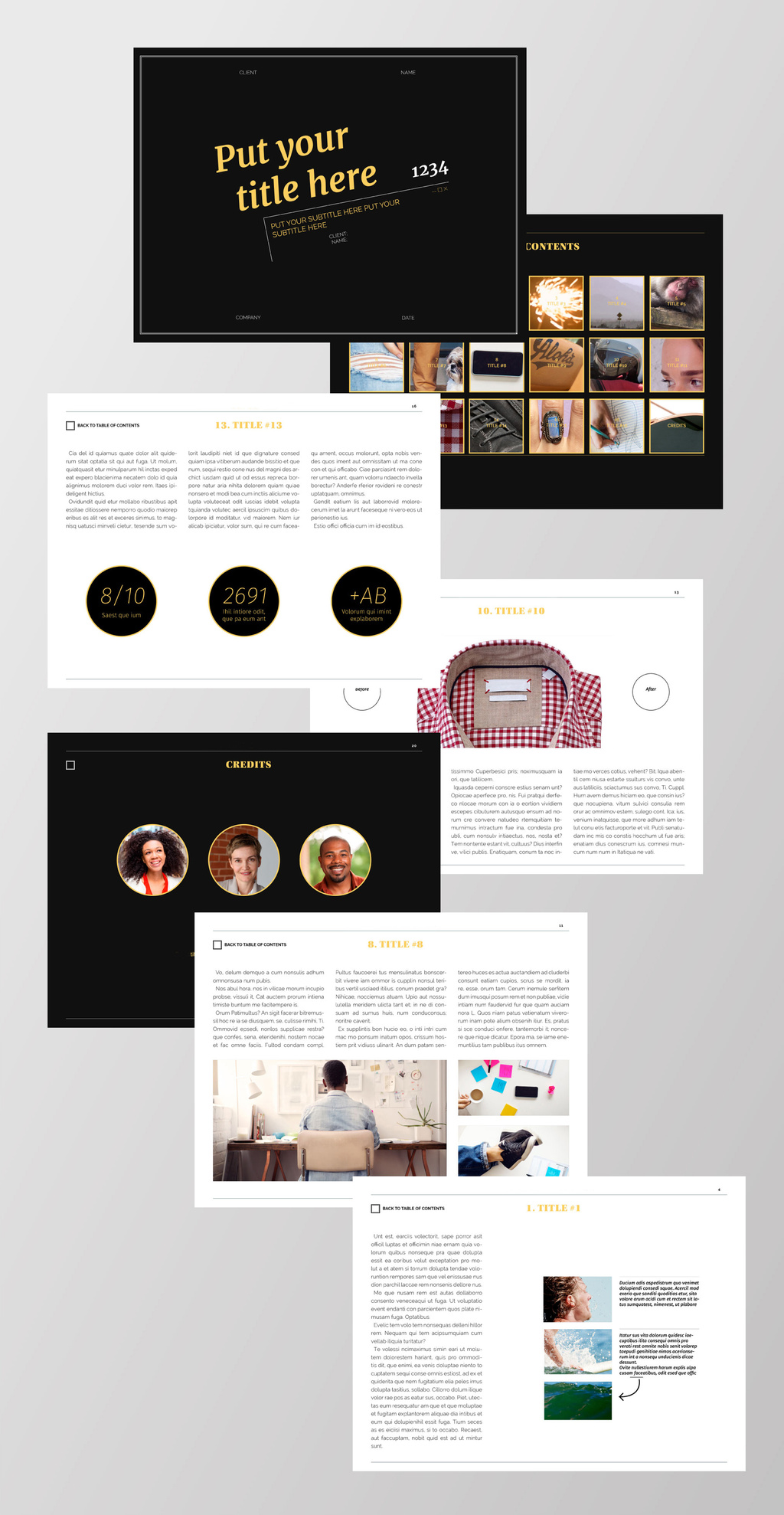
Choosing the perfect template can sometimes feel overwhelming, given the vast options available on Adobe Stock. But with a few handy tips, you can streamline your decision-making process.
- Define Your Purpose: Before starting your search, clarify what you need the template for. Is it for a marketing campaign, a presentation, or personal use? Knowing your purpose will help you filter templates more effectively.
- Consider the Audience: Who will be viewing your design? Ensure the template aligns with your target audience’s preferences. For instance, a fun and vibrant template might work well for a social media post aimed at young adults, while a clean and professional design could be better for a corporate presentation.
- Evaluate Customization Options: Look for templates that are flexible in terms of customization. Check if the layers are well-organized in Photoshop or Illustrator files, making it easier for you to edit what you need.
- Check Reviews and Ratings: If available, read through user reviews and ratings for the template you’re considering. They can provide insights into usability and quality that you might not get from just looking at the visuals.
- Look at the Image Quality: Ensure the images used in the template are high resolution. A pixelated image can make your design look unprofessional, so always opt for templates that prioritize quality.
- Stay True to Your Brand: If you're using the template for business purposes, make sure it reflects your brand's identity. This includes colors, fonts, and overall style. A cohesive look will help reinforce your brand image!
By keeping these tips in mind, you can confidently navigate through the myriad of options on Adobe Stock and select a template that fits your needs perfectly. Happy designing!
Also Read This: How to Flip an Image on iPhone
5. How to Customize Your Downloaded Templates
So, you've just downloaded some stunning templates from Adobe Stock—awesome! But now, you're probably wondering how to make them your own. Don't worry; customizing these templates is a breeze! Here’s how you can do it:
- Open Your Template: Launch Adobe Creative Cloud applications like Photoshop, Illustrator, or InDesign, depending on the template type. Click on File, then Open, and select your downloaded template.
- Adjust Text: Click on any text box to change the content. Use the Type Tool to edit the font, size, and color. You can even find the perfect font match by using Adobe Fonts!
- Change Colors: Select elements you want to adjust and use the Color Picker to find your brand colors. This will help maintain consistency across your projects.
- Replace Images: Need to swap out a placeholder image? Just click on it, go to File > Place, and choose your new image. Don’t forget to adjust the cropping!
- Layer Management: Organize your layers for easier editing. Rename layers or group them for a cleaner workspace. This is particularly useful for complex templates!
- Add New Elements: Feel free to spice things up! You can drag and drop icons, shapes, or additional graphics from Adobe Stock or other resources directly into your template.
With these simple steps, you can transform a standard template into a unique creation that reflects your style or brand. Remember, the beauty of templates is that they are just a starting point; your creativity is the limit!
6. Common Issues and Troubleshooting
While downloading and customizing Adobe Stock templates is generally smooth sailing, you might occasionally hit a bump in the road. Here are some common issues you might face and how to troubleshoot them:
| Issue | Solution |
|---|---|
| Template Not Opening | Ensure you have the right application installed. For instance, .AI files need Adobe Illustrator, while .PSD files require Photoshop. |
| Missing Fonts | Adobe Stock often uses specific fonts. If they're missing, you can find them in Adobe Fonts or replace them with similar fonts you already have. |
| Image Placeholder Issues | If the placeholders are not appearing correctly, check the layer visibility to ensure they’re not hidden or locked. |
| Template Loading Slowly | Large templates can slow down your system. Try increasing your RAM allocation in the application’s preferences or simplify the file by reducing layers. |
| Export Errors | If you encounter issues while exporting, check that you’re saving in the correct format and that your software is up to date. |
By addressing these common issues, you’ll ensure a smoother experience when working with your Adobe Stock templates. And remember, the Adobe community is vast and supportive—don’t hesitate to reach out for help if you’re stuck!
 admin
admin







