Introduction to Adobe Photoshop CS2
Welcome to the world of Adobe Photoshop CS2! If you're just starting out, you're in for a treat. This powerful software allows you to unleash your creativity, whether you’re editing photos, designing graphics, or altering backgrounds. Photoshop CS2 may not be the latest version, but it still packs a punch with features that are user-friendly and perfect for beginners.
With its intuitive interface, you'll find it easy to navigate through tools and menus. Plus, there are countless tutorials and resources available to help you along the way. So grab your mouse, open up Photoshop CS2, and let’s dive into the exciting realm of digital editing!
Also Read This: How to Make a Paper Man: Fun Crafting Tutorial on Dailymotion
Understanding Background Layers
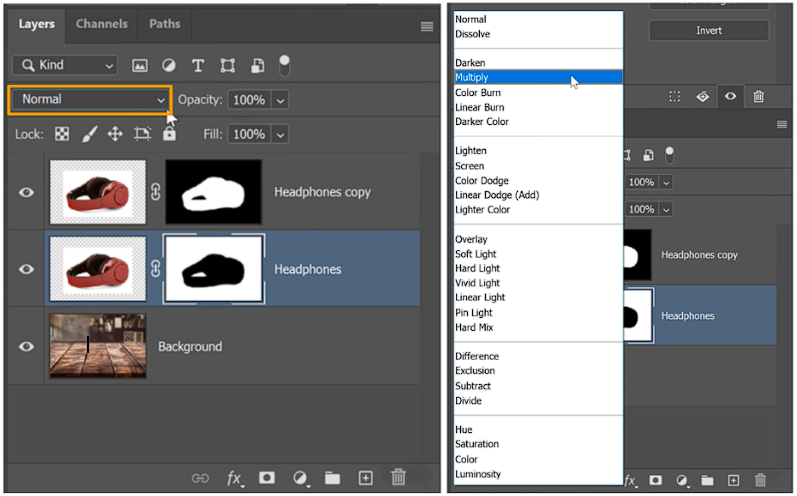
Now that you're familiar with Photoshop CS2, let's talk about one of the most essential concepts: background layers. A background layer is the foundational element of your project, often representing the backdrop of your image. This layer is crucial when you want to change backgrounds without affecting the main subject of your photo.
Here’s how to understand and manipulate background layers:
- What is a Background Layer? The background layer is usually locked by default. This means you can’t move or delete it until you unlock it. It’s typically the first layer you see when you open an image.
- Unlocking the Background Layer: To unlock it, simply double-click on the layer in the Layers panel. A dialog box will pop up, allowing you to rename it. Click "OK," and voila! The layer is now editable.
- Creating a New Background: You can create a new layer for your background. Simply go to the Layers panel, click on the “New Layer” icon, and drag it below your subject layer. This way, you can experiment with different backgrounds without losing your original image.
Here’s a simple table illustrating the differences between a background layer and a regular layer:
| Feature | Background Layer | Regular Layer |
|---|---|---|
| Lock Status | Locked by default | Unlocked |
| Visibility | Always visible | Can be hidden |
| Editing | Limited until unlocked | Fully editable |
By understanding background layers, you can easily replace or modify backgrounds in your images. For instance, if you want to place a scenic view behind a portrait, just unlock the background layer, add your new background layer, and adjust it as needed. Simple, right?
Next, we’ll explore how to actually change these backgrounds, making your images pop even more. Stay tuned!
Also Read This: How to Lip Lock Like a Pro: A Guide for Beginners
3. Tools You Will Need for Background Change
Before diving into the exciting world of background changes in Adobe Photoshop CS2, it’s essential to gather the right tools. Here’s a quick rundown of what you’ll need:
- Adobe Photoshop CS2: Obviously, this software is your main tool! Ensure you have it installed on your computer. If you haven't yet installed it, you can find it on Adobe's official site or through trusted software archives.
- A High-Quality Image: Choose the image you want to edit. A high-resolution photo will yield better results. Look for images with good lighting and contrast to make the background change more effective.
- Selection Tools: Familiarize yourself with the selection tools in Photoshop, like the Magic Wand, Polygonal Lasso, and Quick Selection Tool. Each serves a unique purpose, and knowing how to use them will make your background change smoother.
- Layer Panel: Understanding how to navigate the layer panel will be crucial. You’ll be working with multiple layers to create a seamless background change.
- Optional: Graphics Tablet: If you plan on doing more intricate edits, a graphics tablet can make the selection and painting process easier and more precise.
Once you have these tools ready, you’ll be well-prepared to embark on your background-changing adventure. The right tools will help you achieve the desired effect and ensure your edits look professional.
Also Read This: Learn How to Take Screenshots on Windows 7 with Dailymotion Tutorials
4. Step-by-Step Guide to Changing Backgrounds
Now that you’re equipped with the necessary tools, let’s get into the nitty-gritty of changing backgrounds in Photoshop CS2. Follow these steps, and you’ll have a stunning new background in no time!
- Open Your Image: Launch Adobe Photoshop CS2 and open the image you want to edit. You can do this by going to File > Open, then selecting your image file.
- Select the Background: Use the Magic Wand Tool or Quick Selection Tool to select the area of the background you want to remove. For more complex backgrounds, the Polygonal Lasso Tool can help you make precise selections. Remember, the aim is to get as close to the edges of the subject as possible!
- Refine Your Selection: Once you’ve made your selection, it’s time to refine it. Go to Select > Modify > Feather and set a low value (around 1-3 pixels) to soften the edges. This helps to blend the subject with the new background later.
- Remove the Background: With your selection active, press the Delete key to remove the background. You’ll see a transparent area where the background used to be.
- Add a New Background: Now, it’s time to introduce your new background! Go to File > Open again, and choose a new image for the background. Once opened, use Select All (Ctrl+A) and then Copy (Ctrl+C) to copy it. Switch back to your original image and Paste (Ctrl+V) it. The new background will appear as a new layer.
- Adjust Layer Order: In the Layers panel, drag the new background layer below your subject layer. This ensures your subject is displayed in front of the new background.
- Final Touches: To make your new background blend seamlessly, use the Transform Tool (Ctrl+T) to resize or reposition it as needed. You can also apply adjustments like brightness or contrast through the Image > Adjustments menu to ensure the background complements your subject.
And there you have it! By following these steps, you're well on your way to mastering background changes in Adobe Photoshop CS2. Remember, practice makes perfect, so don’t hesitate to experiment with different images and backgrounds!
Also Read This: How to Do Drawing Step by Step on Dailymotion: Learn to Draw from Scratch
5. Common Mistakes to Avoid
Changing backgrounds in Adobe Photoshop CS2 can be an exciting process, but it’s easy to stumble into a few common pitfalls. Here are some mistakes to watch out for to ensure your project turns out beautifully:
- Not Using Layers: One of the biggest mistakes is failing to work with layers. Always create a new layer for your background change. This allows you to edit or remove the background without affecting the subject of your image.
- Poor Selection Techniques: Selecting the subject improperly can lead to jagged edges or an unnatural look. Be sure to zoom in and use tools like the Polygonal Lasso Tool or Quick Selection Tool for precise selections.
- Ignoring Lighting and Shadows: When you change the background, consider the light source. If your new background has a different light direction, your subject might look out of place. Don’t forget about adding shadows as well to ground your subject in the new environment.
- Overusing Filters: While filters can enhance images, using them excessively can make your background look unrealistic. Use them sparingly and adjust the opacity to keep things looking natural.
- Neglecting Resolution: Ensure that your new background matches the resolution of your subject. Blurry backgrounds or pixelated images can ruin the overall quality of your work.
By keeping these mistakes in mind, you'll avoid common traps and create more convincing background changes. Remember, practice makes perfect, so don’t be discouraged if it doesn’t look right at first!
6. Tips for Enhancing Background Changes
Now that you know what mistakes to avoid, let’s dive into some tips for enhancing your background changes in Adobe Photoshop CS2. With a few tweaks and techniques, you can elevate your image editing skills:
- Adjust Colors: Match the colors of your subject to the new background. Use the Hue/Saturation adjustment layer to tweak the colors of your subject so they blend seamlessly. Consider using the Color Balance tool to ensure that shadows, midtones, and highlights align with the background.
- Use the Clone Stamp Tool: If there are distracting elements in your new background, the Clone Stamp Tool can help you remove them. This tool allows you to paint over unwanted spots, ensuring a clean final image.
- Add Depth with Blur: To create a more realistic look, apply a slight blur to the background. Use the Gaussian Blur filter to mimic the depth of field you’d see in a natural photograph, helping your subject stand out.
- Experiment with Textures: Adding a texture overlay to your new background can add interest and depth. Try blending modes like Overlay or Soft Light to see how different textures interact with your background.
- Finalize with a Color Grading: Once everything is in place, apply a final color grade to unify all elements within the image. This can be done using Adjustment Layers to enhance the overall mood and cohesiveness of your composition.
By incorporating these tips, you'll not only improve the quality of your background changes but also develop a more refined eye for detail. Happy editing!
 admin
admin







