Have you ever come across an interesting article or post on LinkedIn and thought, “I need to save this for later”? You’re not alone! Many of us use LinkedIn to discover valuable content, but sometimes, we want to revisit those gems. In this post, we’ll walk you through the simple steps to access your saved posts on
Understanding Saved Posts on LinkedIn
Saved posts on LinkedIn are your personal bookmark feature. They allow you to easily collect and store posts, articles, and updates you find valuable. But why should you bother saving posts? Let’s break it down:
- Convenience: No more endless scrolling through your feed to find that one brilliant article. Saved posts provide a neat collection for quick access.
- Organization: Grouping relevant content helps you keep track of industry trends, networking opportunities, or even job postings that catch your eye.
- Personal Development: By saving posts, you create a library of resources that can aid in your professional growth. Whether it’s tips on leadership or insights into new technologies, you have it all in one place.
Now that we understand the benefits of saved posts, let’s delve into the specifics of how they work:
When you come across a post that piques your interest, simply click the three dots in the upper right-hand corner of the post. From there, select “Save” or “Save Post.” This action stores it in your profile, making it easy to revisit later. But where do these saved posts go?
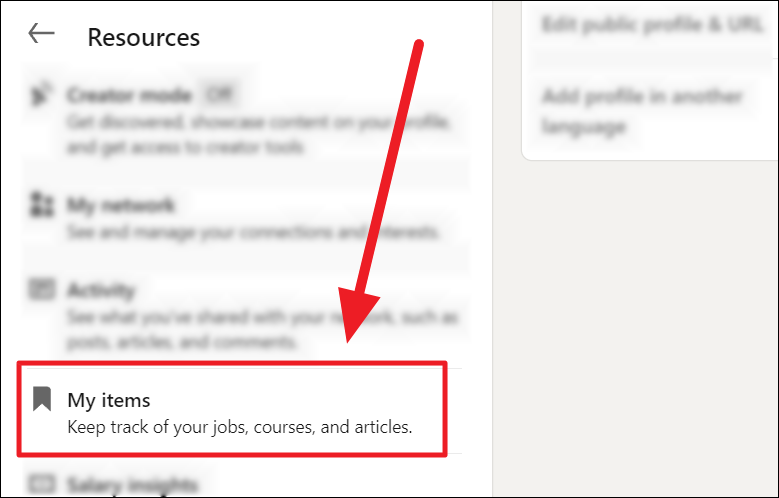
Your saved posts can be found in the “My Items” section of your LinkedIn profile. Here’s how to access them:
- Log in to your LinkedIn account.
- Click on your profile icon at the top of the page.
- Select “My Items” from the dropdown menu.
In the “My Items” section, you’ll see all your saved posts listed. This organized view allows you to quickly browse through your collection, making it easier to find what you need. You can also remove posts from this section if you no longer find them relevant.
In conclusion, saved posts on LinkedIn are a powerful tool for anyone looking to enhance their professional journey. They simplify the process of curating valuable content, ensuring that the insights which matter most to you are just a click away. So, go ahead and start saving those posts—you’ll be glad you did!
Also Read This: How to Unfollow Someone on LinkedIn and Control Your Feed
3. Step-by-Step Guide to Accessing Your Saved Posts
Accessing your saved posts on LinkedIn is a breeze! Whether you want to revisit an article, a job listing, or a post that sparked your interest, just follow these simple steps:
- Log into Your LinkedIn Account: Start by opening LinkedIn in your web browser or app. Enter your credentials and hit that login button!
- Navigate to Your Profile: Click on your profile picture located at the top left corner. This will take you directly to your profile page.
- Find the 'Saved Posts' Section: Scroll down your profile until you see the 'Activity' section. Under this section, you’ll find tabs for 'Posts,' 'Articles,' and 'Documents.' Look for the 'Saved' tab.
- Click on 'Saved': Once you click on the 'Saved' tab, you'll see a collection of all the posts you've saved. It’s like your personal library of LinkedIn gems!
- Explore Your Saved Content: Browse through the saved posts. Click on any post to open it and read the full content. You’ll be amazed at how much valuable information you’ve kept!
And just like that, you're in! If you're using the mobile app, the steps are similar. Just look for your profile and find the saved section in the activity area. So easy, right?
Also Read This: How to Post Pictures on LinkedIn for Better Engagement
4. Managing Your Saved Posts
Now that you know how to access your saved posts, let’s talk about managing them effectively. Keeping your saved posts organized ensures you can find what you need quickly and easily. Here’s how to do it:
- Review Your Saved Posts Regularly: Set aside some time each week to go through your saved posts. This helps you stay updated on the content that’s still relevant to you.
- Unsave Posts That No Longer Interest You: If you come across a post that no longer piques your interest, click on the three dots at the top right corner and select 'Unsave.' It’s all about keeping your saved list fresh!
- Organize by Categories: While LinkedIn doesn’t currently allow folders for saved posts, you can create a document or a notes app on your phone to categorize links to your favorite posts. Consider categories like 'Networking Tips,' 'Job Opportunities,' and 'Industry News.'
- Share Valuable Posts: If you find a post particularly useful, don’t hesitate to share it on your own feed! Just click 'Share' and add your thoughts or insights. This not only helps your network but also keeps your engagement high.
- Engage with Saved Posts: After reading a saved post, take a moment to engage! Leave a comment or react to the post. This can foster connections and may even lead to interesting discussions.
By managing your saved posts effectively, you not only streamline your LinkedIn experience but also enhance your professional development. So, dive in and start organizing that treasure trove of information!
Also Read This: How to Download LinkedIn Contacts: A Complete Guide
5. Tips for Efficiently Using Saved Posts
Accessing your saved posts on LinkedIn is just the beginning; maximizing their value is where the magic happens! Here are some practical tips to help you use your saved posts efficiently:
- Organize by Relevance: Consider regularly reviewing your saved posts and categorizing them based on themes—such as networking tips, industry news, or career development. This will make it easier to find what you need when you need it!
- Set Reminders: If you come across a post that you want to revisit later, don’t hesitate to set a reminder for yourself. Creating a calendar event can help ensure you check back on crucial information or insights.
- Engage with Content: When you save a post, take a moment to engage with it! Leave a comment or share your thoughts. This not only helps you remember what you liked about the post but also increases visibility for the author, fostering greater connections.
- Utilize the Search Feature: Don't forget that LinkedIn has a powerful search feature. If you're looking for something specific, use keywords related to your saved posts to quickly locate them. This can save you a ton of time!
- Regularly Clean Up: Make it a habit to periodically review your saved posts. If you find that some no longer serve your interests or needs, don’t hesitate to unsave them. A clutter-free saved post list can enhance your focus!
By implementing these tips, you’ll be able to efficiently navigate your saved posts and derive the most value from them, keeping your LinkedIn experience rich and rewarding.
6. Common Issues and Troubleshooting
While accessing your saved posts on LinkedIn is usually a smooth process, you might encounter a few bumps along the way. Here are some common issues and their solutions:
- Posts Not Appearing in Saved Section: If you’ve saved posts but they aren’t showing up, try refreshing the page or logging out and back into your account. Sometimes, a simple refresh can work wonders!
- Unable to Save Posts: If you find the option to save a post is grayed out or unresponsive, ensure that you are connected to the internet. Sometimes a weak connection can prevent functionality. Additionally, check if you're using the latest version of the LinkedIn app or website.
- Saved Posts Disappearing: If you notice that saved posts are disappearing, it could be due to privacy changes made by the poster. If a post is deleted or the author adjusts their privacy settings, it might remove it from your saved list.
- Slow Loading Times: If your saved posts section is loading slowly, it might be due to browser issues or heavy internet traffic. Try clearing your browser cache or using a different device.
- Feature Changes: LinkedIn often updates its features. If you’re having trouble finding the saved posts option, check LinkedIn’s help center for the latest updates and guides on their interface.
By knowing these common issues and their quick fixes, you can navigate your LinkedIn experience with confidence. Remember, technology can be unpredictable, but a little troubleshooting goes a long way!
 admin
admin







