Finding high-resolution images
 After deciding on the type of image you need and its purpose, the next step is to find high-resolution images that meet your requirements. Here are some tips on how to find high-resolution images:
Use search engines that specialize in high-resolution images
Some search engines, such as Google Images, allow you to filter your search results by image size or resolution. However, to find high-resolution images specifically, it's best to use search engines that specialize in them. Examples of such search engines include Pexels, Unsplash, and Shutterstock.
Search for specific image dimensions
Another way to find high-resolution images is to search for specific dimensions. For example, if you're looking for a high-resolution image for a banner, you may want to search for images that are 1920 pixels wide by 1080 pixels tall, which is the standard size for a Full HD banner.
Look for images from reputable sources
When searching for high-resolution images, it's important to use images that are legally available for use. This means looking for images from reputable sources, such as those mentioned above. These sources provide images that are free to use without attribution or those that require attribution for the original author.
Use specific keywords in your search
To narrow down your search results, use specific keywords that describe the image you're looking for. For example, if you're looking for an image of a red rose, try using keywords such as "red rose," "flower," or "nature."
By following these tips, you'll be able to find high-resolution images that meet your requirements and are legally available for use. In the next section, we'll show you how to check the resolution of an image.
After deciding on the type of image you need and its purpose, the next step is to find high-resolution images that meet your requirements. Here are some tips on how to find high-resolution images:
Use search engines that specialize in high-resolution images
Some search engines, such as Google Images, allow you to filter your search results by image size or resolution. However, to find high-resolution images specifically, it's best to use search engines that specialize in them. Examples of such search engines include Pexels, Unsplash, and Shutterstock.
Search for specific image dimensions
Another way to find high-resolution images is to search for specific dimensions. For example, if you're looking for a high-resolution image for a banner, you may want to search for images that are 1920 pixels wide by 1080 pixels tall, which is the standard size for a Full HD banner.
Look for images from reputable sources
When searching for high-resolution images, it's important to use images that are legally available for use. This means looking for images from reputable sources, such as those mentioned above. These sources provide images that are free to use without attribution or those that require attribution for the original author.
Use specific keywords in your search
To narrow down your search results, use specific keywords that describe the image you're looking for. For example, if you're looking for an image of a red rose, try using keywords such as "red rose," "flower," or "nature."
By following these tips, you'll be able to find high-resolution images that meet your requirements and are legally available for use. In the next section, we'll show you how to check the resolution of an image.
Also Read This: How to Use Free Getty Images: Where to Find Free and Licensed Content
Checking image resolution
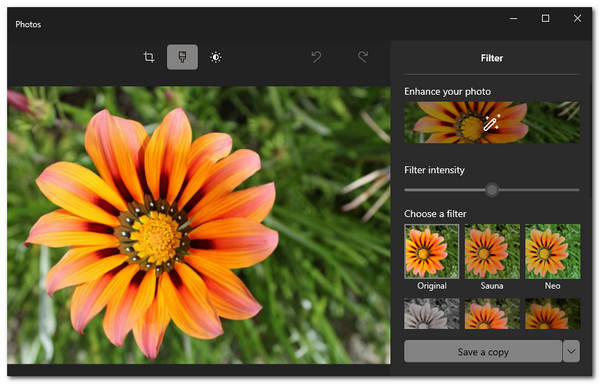 Once you've found an image that you like, it's important to check its resolution to ensure that it meets your needs. Here's how you can check the resolution of an image:
Use the image properties
On Windows, right-click on the image and select "Properties." On a Mac, right-click on the image and select "Get Info." This will show you the image size, which includes the resolution in pixels per inch (PPI) or dots per inch (DPI).
Use online tools
There are many online tools available that can check the resolution of an image. Simply upload the image to the tool, and it will display the image size, including the resolution. Examples of such tools include TinEye, Google Images, and Pic Resize.
Use photo editing software
If you have photo editing software such as Adobe Photoshop or GIMP, you can open the image and check its resolution. In Photoshop, go to "Image" and select "Image Size." In GIMP, go to "Image" and select "Scale Image." This will show you the image size, including the resolution.
It's important to note that image resolution is measured in PPI or DPI. The higher the PPI or DPI, the higher the image resolution. Generally, images with a resolution of 300 PPI or higher are considered high-resolution.
By checking the resolution of an image before downloading it, you can ensure that it meets your needs and is of high quality. In the next section, we'll show you how to download high-resolution images.
Once you've found an image that you like, it's important to check its resolution to ensure that it meets your needs. Here's how you can check the resolution of an image:
Use the image properties
On Windows, right-click on the image and select "Properties." On a Mac, right-click on the image and select "Get Info." This will show you the image size, which includes the resolution in pixels per inch (PPI) or dots per inch (DPI).
Use online tools
There are many online tools available that can check the resolution of an image. Simply upload the image to the tool, and it will display the image size, including the resolution. Examples of such tools include TinEye, Google Images, and Pic Resize.
Use photo editing software
If you have photo editing software such as Adobe Photoshop or GIMP, you can open the image and check its resolution. In Photoshop, go to "Image" and select "Image Size." In GIMP, go to "Image" and select "Scale Image." This will show you the image size, including the resolution.
It's important to note that image resolution is measured in PPI or DPI. The higher the PPI or DPI, the higher the image resolution. Generally, images with a resolution of 300 PPI or higher are considered high-resolution.
By checking the resolution of an image before downloading it, you can ensure that it meets your needs and is of high quality. In the next section, we'll show you how to download high-resolution images.
 admin
admin







